Translations:Nastavení Outlook s MFA pro mobilní zařízení/3/en: Porovnání verzí
Skočit na navigaci
Skočit na vyhledávání
Bez shrnutí editace |
Bez shrnutí editace |
||
| Řádek 2: | Řádek 2: | ||
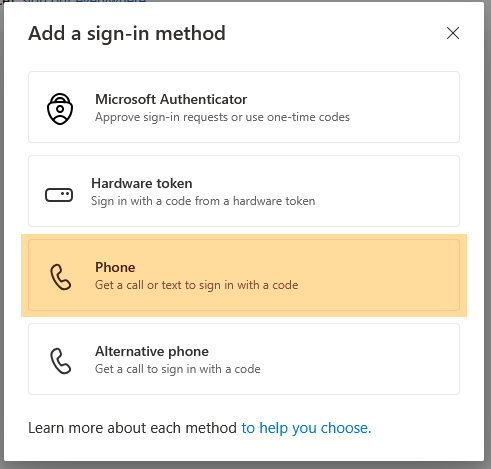
Screenshot 8 – Add another verification method | Screenshot 8 – Add another verification method | ||
[[Soubor:Mfa-en8.png|střed|bezrámu|783x783pixelů]] | |||
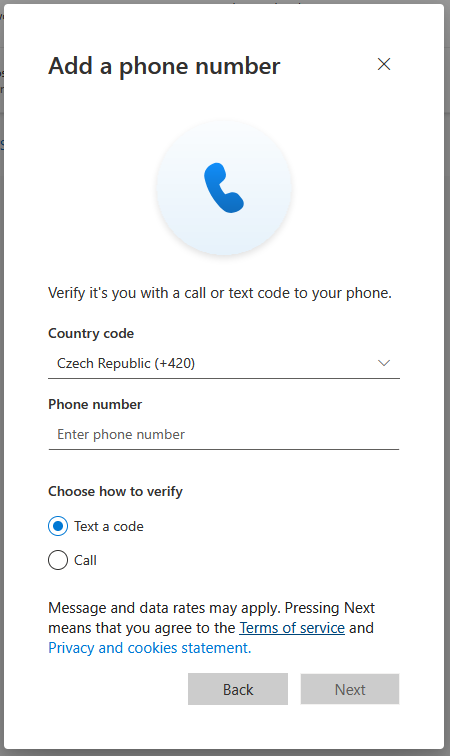
Enter your mobile phone number and click Next. | Enter your mobile phone number and click Next. | ||
Screenshot 9 – Enter phone number | Screenshot 9 – Enter phone number | ||
[[Soubor:Mfa-en9.png|střed|bezrámu|783x783pixelů]] | |||
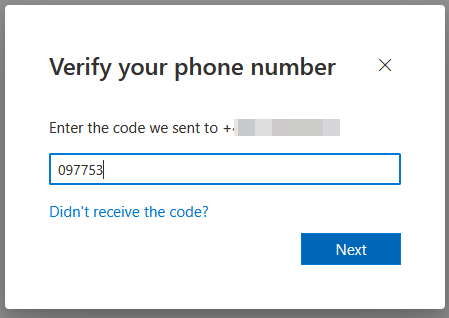
A text message (SMS) containing a verification code will be sent to your phone. | A text message (SMS) containing a verification code will be sent to your phone. | ||
| Řádek 14: | Řádek 14: | ||
Screenshot 10 – SMS verification | Screenshot 10 – SMS verification | ||
[[Soubor:Mfa-en10.png|střed|bezrámu|783x783pixelů]] | |||
Verze z 20. 7. 2026, 13:11
=== Add an Additional VerifiWe strongly recommend configuring a backup verification method by enabling SMS verification.
Screenshot 8 – Add another verification method

Enter your mobile phone number and click Next.
Screenshot 9 – Enter phone number

A text message (SMS) containing a verification code will be sent to your phone.
Enter the code on your computer to complete the setup.
Screenshot 10 – SMS verification
