Translations:Nastavení Outlook s MFA pro mobilní zařízení/5/en: Porovnání verzí
Skočit na navigaci
Skočit na vyhledávání
(založena nová stránka s textem „== Signing in to Outlook == Download and install Microsoft Outlook from: Google Play Store Apple App Store Open Outlook and select Add Account. Screenshot 12 – Add account in Outlook (Mfa-outlook-9.png) Outlook may automatically detect your university account based on the Microsoft Authenticator configuration. If it does, simply select Add Account. Screenshot 13 – Account detected (Mfa-outlook-11.png) If your account is not detected automat…“) |
Bez shrnutí editace |
||
| (Nejsou zobrazeny 2 mezilehlé verze od stejného uživatele.) | |||
| Řádek 1: | Řádek 1: | ||
== Signing in to Outlook == | == Signing in to Outlook == | ||
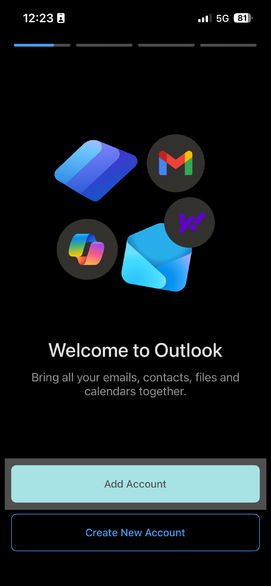
Download and install Microsoft Outlook from | Download and install Microsoft Outlook from Google Play Store or Apple App Store Then Open Outlook and select '''Add Account'''. | ||
[[Soubor:Mfa-en12.png|střed|bezrámu|586x586pixelů]] | |||
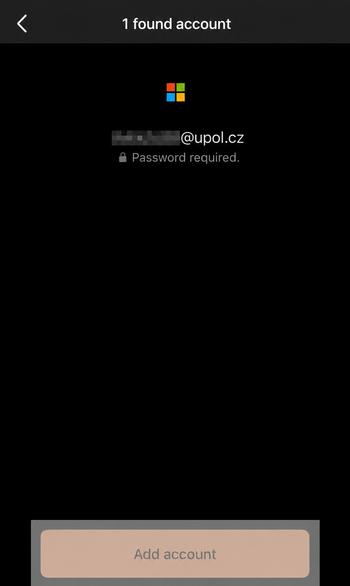
Outlook may automatically detect your university account based on the Microsoft Authenticator configuration. If it does, simply select '''Add Account'''. | |||
[[Soubor:Mfa-en13.png|střed|bezrámu|586x586pixelů]] | |||
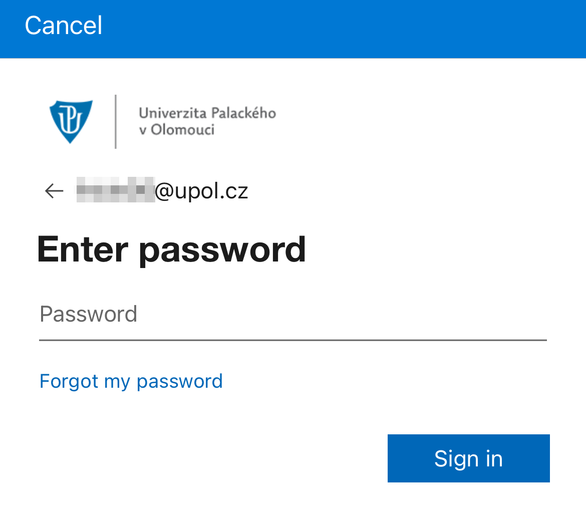
If your account is not detected automatically, enter your university username in the format '''login@upol.cz''' and then select Sign In. | |||
[[Soubor:Mfa-en14.png|střed|bezrámu|586x586pixelů]] | |||
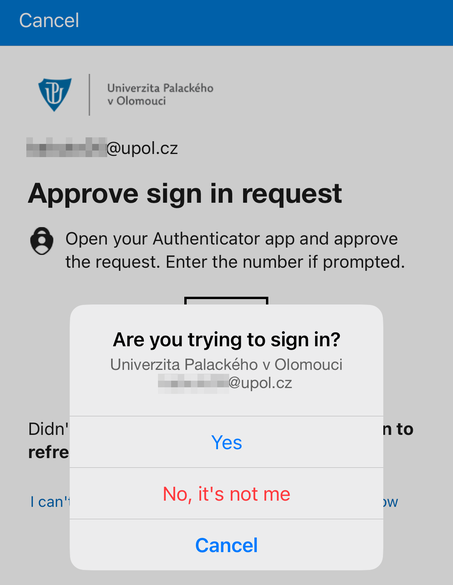
You will be redirected to Microsoft Authenticator, where you will enter your password. Microsoft Authenticator may sign you in automatically. Alternatively, it may ask you to confirm the sign-in request. If prompted, tap Yes to approve the login. | |||
[[Soubor:Mfa-en15.png|střed|bezrámu|586x586pixelů]] | |||
Aktuální verze z 20. 7. 2026, 13:29
Signing in to Outlook
Download and install Microsoft Outlook from Google Play Store or Apple App Store Then Open Outlook and select Add Account.

Outlook may automatically detect your university account based on the Microsoft Authenticator configuration. If it does, simply select Add Account.

If your account is not detected automatically, enter your university username in the format login@upol.cz and then select Sign In.

You will be redirected to Microsoft Authenticator, where you will enter your password. Microsoft Authenticator may sign you in automatically. Alternatively, it may ask you to confirm the sign-in request. If prompted, tap Yes to approve the login.
